

iPhone Phone
Call Tips & Tricks
in Victoria BC
Most hearing aids now have the capability of connecting to cell phones for the purpose of streaming phone call audio directly via the hearing aids. Below are some common tips and tricks to help you hear the best while streaming phone calls from your iPhone through your hearing aids.
How to change from streaming through your hearing aids to speaker phone
By default, if your hearing aids are connected via bluetooth to your iPhone, phone call audio with automatically route through your hearing aids. However, there are times where you may want to put the phone call on speakerphone so that others may hear.
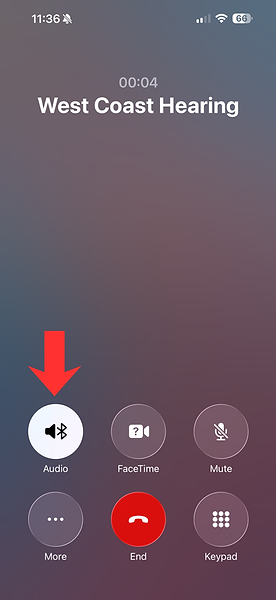
To do so, open up the phone call screen on your iPhone.
Once you are in this screen, you can click on the audio icon to bring up a menu that lets you select where you want the phone call sound to route.



How to change which microphone is picking up your voice during the phone call
Most hearing aids are capable of hands-free calling with iPhone. This means when you are streaming the phone call through your hearing aids, you don't need to hold up your phone for the person on the other end to hear you. This is achieved by iPhone using your hearing aid microphones to pick up your voice during the phone call, rather than the iPhone microphone.
If the person on the other end of the phone call is having a hard time hearing you, you can switch to using your iPhone microphone to pick up your voice instead. (This does require you position your phone the same way you would if you were using speakerphone. If your phone is in your pocket or across the room, the iPhone is too far away to pick up your voice clearly.)
To change which microphone is picking up your voice, follow the steps below:
-
Swipe down diagonally on your screen beginning from the top right corner to bring up your iPhone's Control Center.
-
Click on "Phone Controls" at the top of the screen.
-
Click on "Audio Input" to bring up the menu to change which microphone is selected.
-
Select "iPhone Microphone"


How to change the microphone settings
If you are on the phone somewhere noisy, that can make it harder for the person on the other end of the phone to hear you clearly. Changing the microphone mode can often improve the sound quality for the person on the other end.
To change the microphone settings, follow the steps below:
-
Swipe down diagonally on your screen beginning from the top right corner to bring up your iPhone's Control Center.
-
Change the microphone mode from "Automatic" to "Voice Isolation"
If you do not feel confident taking these steps and want to learn more, you may want to consider taking lessons on how to use your technology. There are many classes offered in Greater Victoria to help people learn to use and get the most out of their technology.
If these steps have failed to resolve the issue, please contact us for help.

